

Find your situation by section: each entry says what you see, why it happened and what to do. The fixes are free and usually take a couple of minutes. At the end you will find how to write to support.
Where to find the error text
- Open "Publications" → the "Content" tab → the "Errors" list. Every line has a reason in plain language and the attempt number.
- Deal with the reason and click "Restart" in that same line.
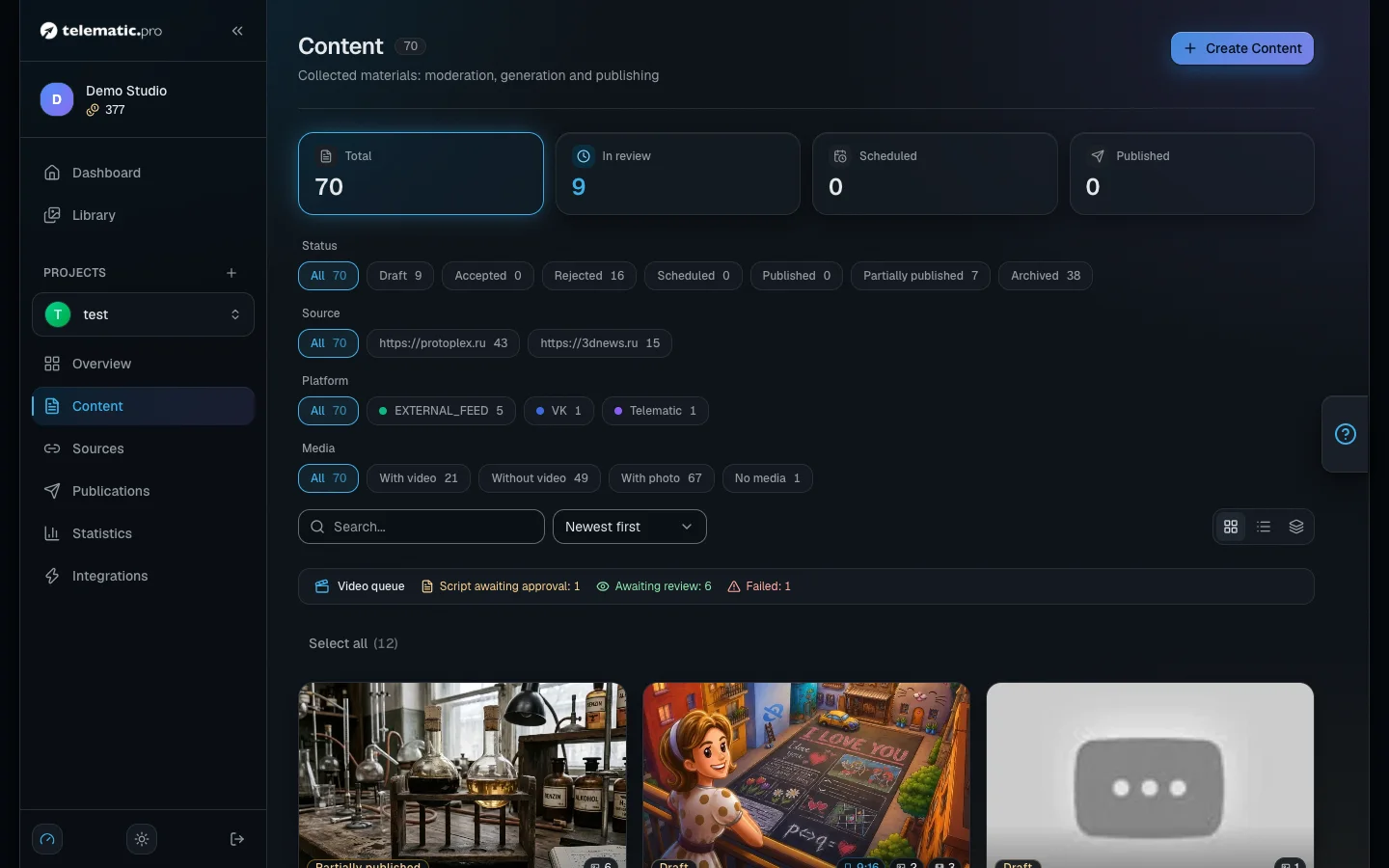
Access problems also show up in the "Integrations" section: red text or the "Reconnect required" badge appears on the platform's card.
Connections and rights
- What you see. The bot is not an administrator of the channel, it is not in the channel, or it was removed. Why. The bot was never added, or it was taken out during a clear-out of administrators. What to do. In Telegram open the channel settings → "Administrators", add the bot and give it the right to post messages.
- What you see. The bot has no right to post messages or to send media. Why. The bot is an administrator, but the right it needs is switched off. What to do. Switch it on in the administrator rights.
- What you see. The channel is not found, or the group has become a supergroup. Why. The channel was deleted or renamed; the group's internal number has changed. What to do. Check the channel, then click "Refresh" on the platform's card.
- What you see. "The bot token is invalid. Check the token in the integration settings." Why. The token of your own bot has been revoked. What to do. Get a new one from @BotFather and paste it into the platform settings.
- What you see. "The access token expired or was revoked. Reconnect the integration." or the "Reconnect required" badge. Why. The access granted when you connected YouTube or VK has expired or been revoked. What to do. Connect the platform again — see Projects and platforms. For YouTube the circular arrow button on the card is enough.
- What you see. The account has too few rights, or the platform refused the request. Why. Not every permission was granted when you connected. What to do. Connect again and tick every permission it asks for.
- What you see. "The account has no YouTube channel, or it's unavailable. Create a channel and reconnect the integration." Why. You logged in to a Google account that has no channel. What to do. Create a channel on YouTube and connect it again.
Posts are not going out
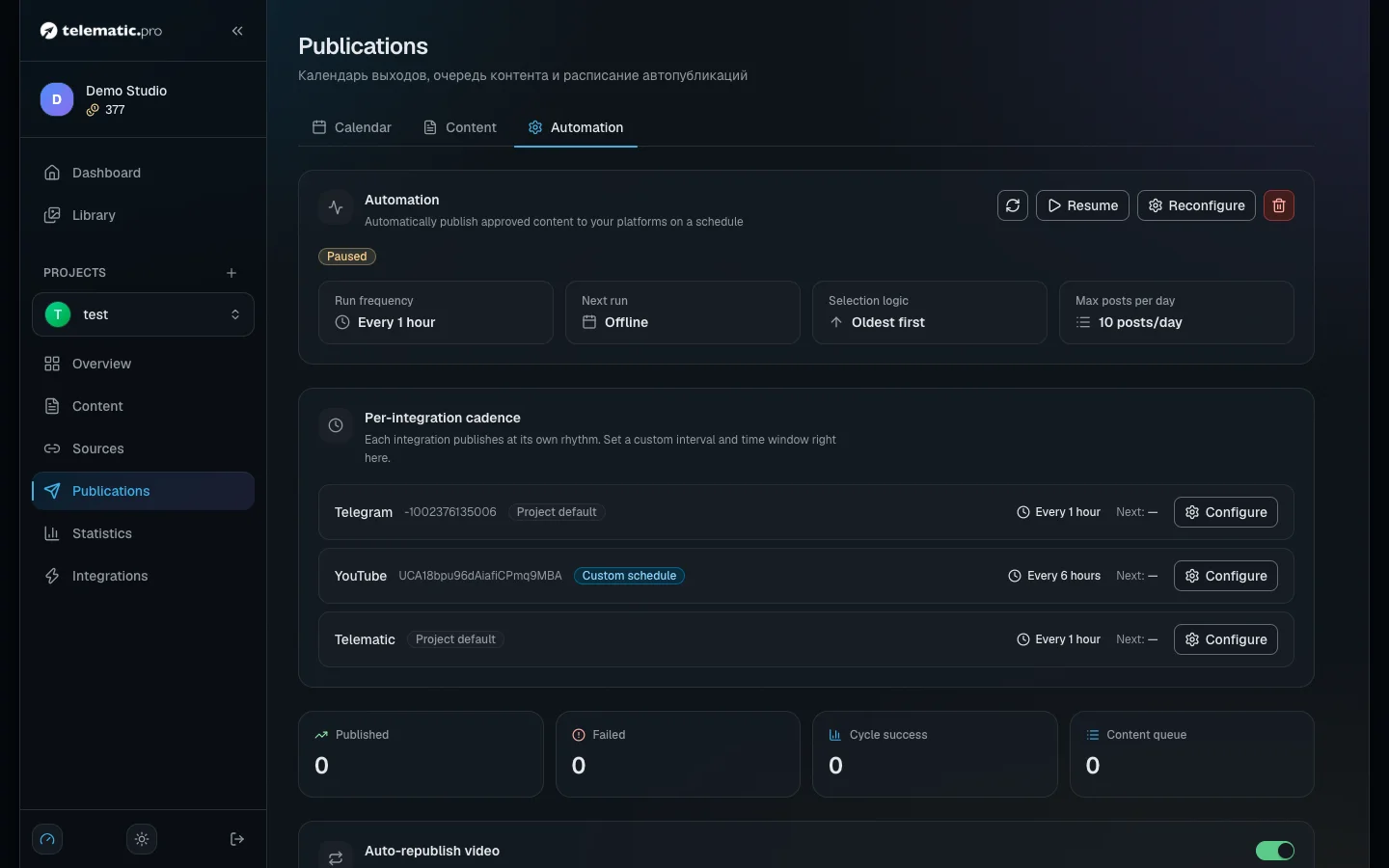
- What you see. Items are accepted but do not publish themselves; the Advisor says "Auto-publishing is off". Why. The publication schedule has not been created, or it is not active. Drafts do not go out on a schedule — only items with the "Accepted" status do. What to do. "Publications" → "Automation": the status must be "Active". If it says "Paused", click "Resume". There is more in Publications and calendar.
- What you see. "The platform's daily quota is used up. Posting resumes after the limit resets." Why. YouTube has a daily limit on requests and uploads. What to do. Wait for the limit to reset and restart the publication.
- What you see. The platform has limited the request rate, with a retry in so many seconds. Why. Too many publications one after another. What to do. Nothing: for Telegram the service waits and tries again by itself.
- What you see. The text or the media caption is too long. Why. The platform has a length limit. What to do. Shorten the version for that platform on the "Platform versions" tab — see Working with content.
- What you see. The platform treats the post as a duplicate, could not parse the formatting, or the publication was skipped by the platform's settings. What to do. Change the text or remove the special characters; check that platform's publication settings.
- What you see. The platform did not answer in time or is temporarily unavailable. Why. Something is wrong on their side. What to do. The service makes up to three attempts by itself; later, click "Restart".
- What you see. The post went out but the views show "—". What to do. This is not a publishing error — the reasons are in Statistics and the Advisor.
Sources collect nothing
- What you see. On the source's "Automation" tab — "Not configured" and a red "Last error" card. Why. Five failures in a row switch the schedule off. What to do. Fix the settings and click "Edit" → "Save": the failure counter resets.
- What you see. "Idle run" in the log. Why. There are no new items (anything already collected is not taken again), or the site has closed itself to robots. What to do. Check the address and the selectors — see Content sources.
- What you see. Runs with the "Skipped" status. Why. There were not enough tokens — see the balance section below.
Video
- What you see. The video buttons are inactive, with "Not available during trial access" next to them. Why. Video and AI images open up after your first top-up. What to do. Top up your balance.
- What you see. An error saying the build was interrupted. Why. Nothing moved for 20 minutes, so the build counts as interrupted. What to do. In the studio click "Retry stage" (the scenes you have are kept), in autopilot click "Retry".
- What you see. "Queued for a worker..." or "Building video…" for a long time. Why. The video is waiting for a free build slot; the server will build it itself within 5 minutes at the latest. What to do. Wait.
- What you see. "The file is too large for this platform. Reduce its size or duration.", or the platform will not accept the format. Why. The limits: Shorts up to 180 seconds, TikTok vertical video only and up to 10 minutes, Telegram a file of up to 50 MB. What to do. Build a shorter video or one in the right format; for Shorts a teaser will do — see Autopilot.
- What you see. The media file could not be uploaded, or the file was not found. Why. The file has been deleted or is unavailable. What to do. Upload it again, or rebuild the video, and publish once more.
Balance
- What you see. "Insufficient balance", or "Insufficient token balance" in the video studio. What to do. Top up your balance — see Tokens and payment.
- What you see. Posts have stopped going out on schedule, and an e-mail or a Telegram message about tokens has arrived. Why. Publishing needs at least 1 token for each platform. Without them the run is skipped and the item stays in the queue. What to do. Top up your balance — the next run goes ahead as usual.
- What you see. "Out of tokens — top up to resume" on the source page. Why. After three skips in a row the source's schedule pauses. What to do. Top up your balance: within a minute the schedule switches itself back on and starts collecting straight away.
No more than three balance reminders are sent: immediately, after 2 days and after another 7 days.
Write to support
If the error message itself tells you to contact support, or your situation is not covered here, write to us:
- Telegram: @protoplex1 — the fastest way;
- e-mail: support@telematic.pro;
- service news: the @TelematicPro channel.
Include: the project name, a link to the item or its headline, the platform, the exact error text, the time and a screenshot. Do not send passwords, bot tokens or feed keys.
What next
- Projects and platforms — how to connect a platform again.
- Publications and calendar — the schedule and the error list in detail.
- Tokens and payment — prices and topping up.