

A finished item can go out right away or join a queue the service works through on its own. Here you will set up a schedule, learn to read the calendar and work out why a post did not go out. Publishing by hand is free; automatic publishing costs 1 token per platform.
Publish an item now
- Open a draft and click "Approve". Only accepted items can be published.
- Wait for the texts for your platforms to appear on the "Platform versions" tab.
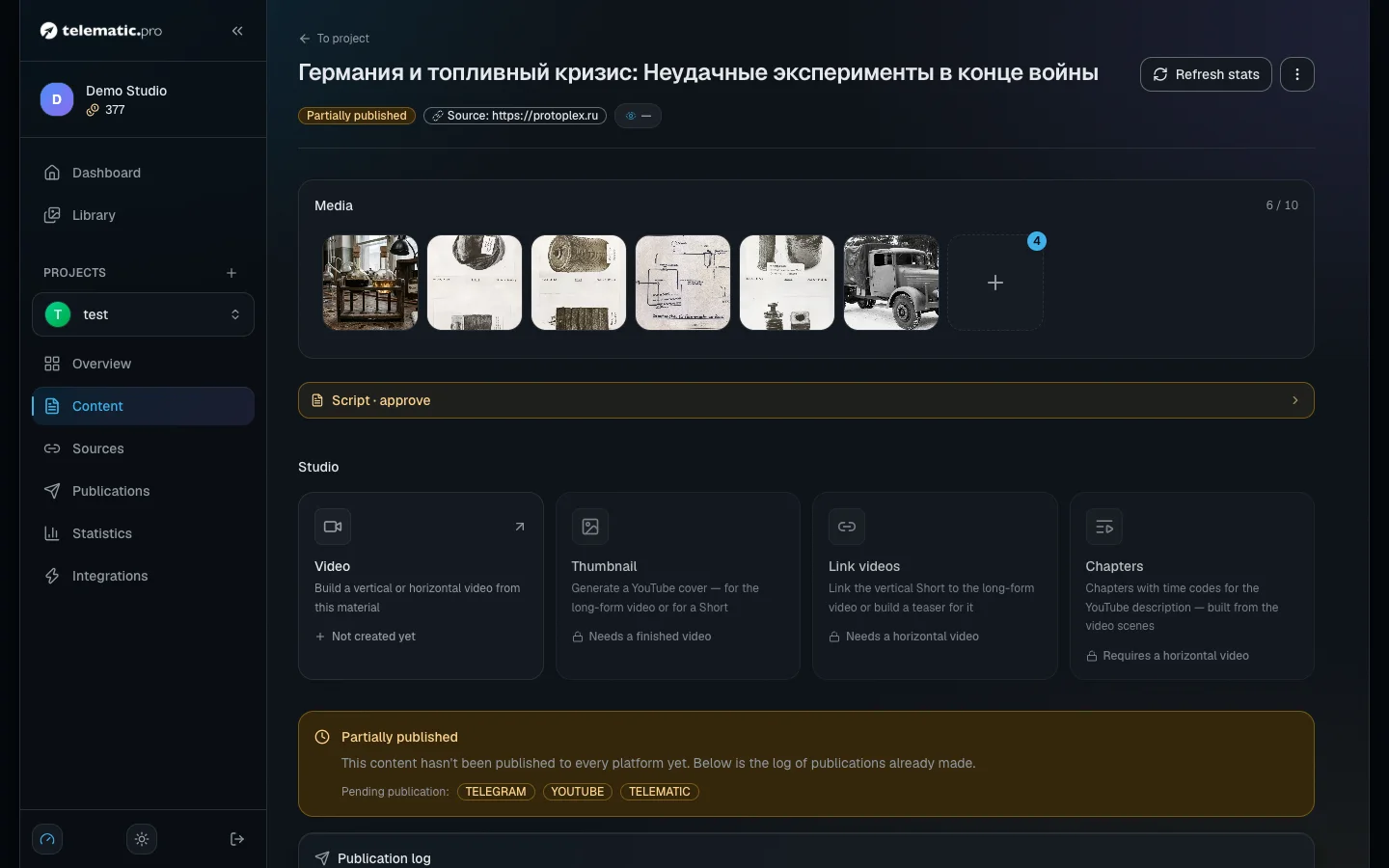
- Click "Publish" at the top of the page — the item goes out to every active platform. If there are no versions yet, the service offers to create them and publish straight away.
- To send a post to just one platform, click "Publish" on its card.
If the item has both a horizontal and a vertical video, the service asks which formats to upload before it sends anything to YouTube.
If you need the post later, click "Schedule" and pick a date and time — it moves to "Scheduled". This is not a to-the-minute release: the service reads your moment as "no earlier than" and publishes the item in the first slot of the project's schedule after it. Something scheduled for 14:05 on an hourly schedule goes out around 15:00, and later still if the posting window has closed by then or the daily limit is already spent. So the schedule has to be switched on: without it a scheduled item never goes out. And if it has been waiting for more than a day — say the schedule was paused — the service will not publish it after the fact: the item lands in "Stuck content", where you can schedule it again or publish it by hand.
What it costs. Publishing by hand is free. If versions have to be created on the spot, each one costs from 1 token (depends on the model).
Important. The button at the top skips platforms where the post has already gone out, so there will be no duplicates. The button on a platform card can send the post a second time.
Set up the automation schedule
The schedule takes accepted items from the queue by itself and publishes one per run.
- In the menu on the left open "Publications" → the "Automation" tab and click "Configure parameters".
- "Run interval" — how often a post goes out: from 5 minutes to 30 days.
- "Selection algorithm" — what to take from the queue: "Oldest first", "Newest first" or "Random".
- "Operational Window" — the hours when publishing is allowed, for example "Evening (18–22)".
- "Max posts per day" — from 1 to 100.
- "Min content age (min)" — how many minutes a new item waits before it may be published.
- Click "Save". You can pause the schedule with "Pause" and change it with "Reconfigure".
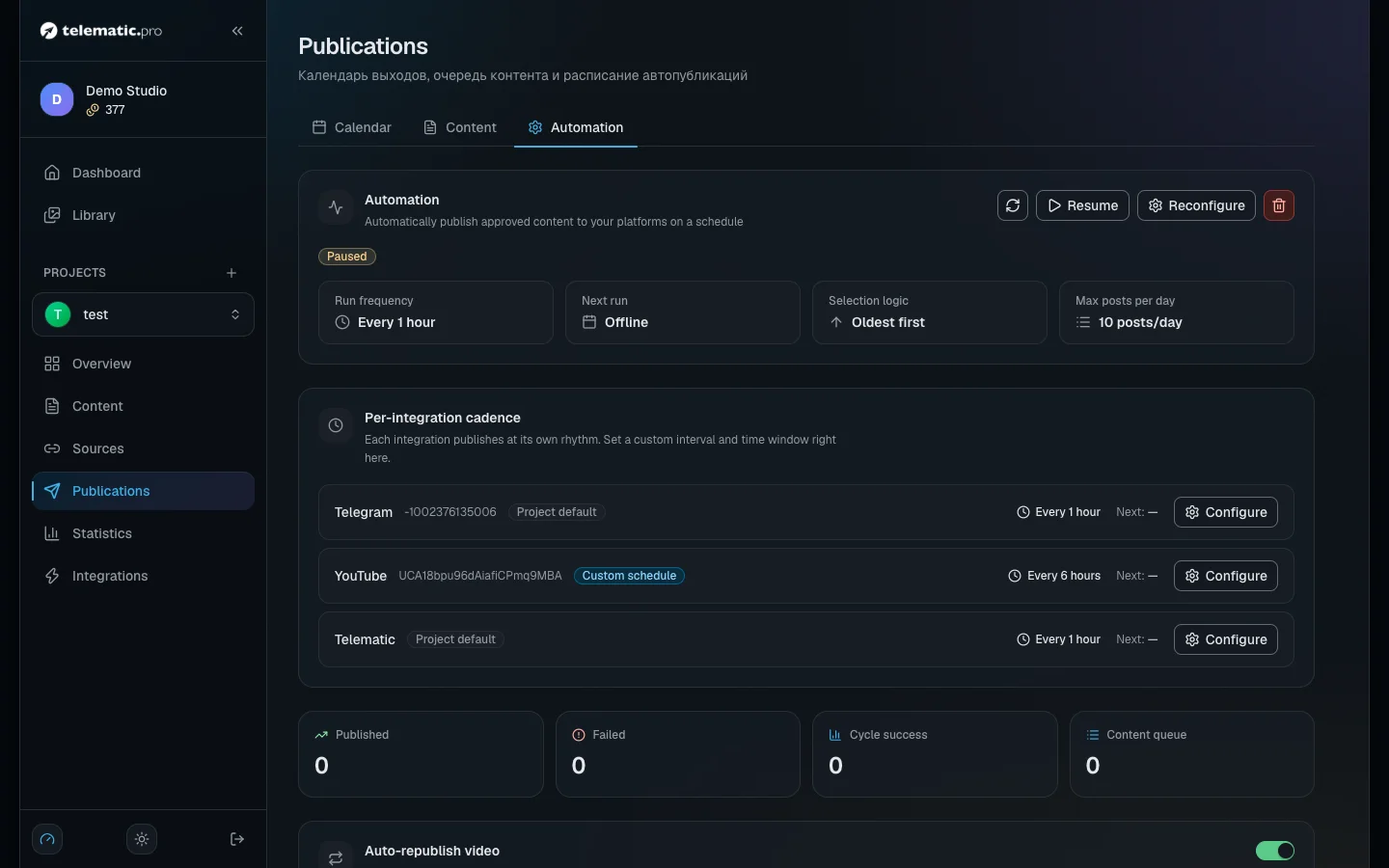
Important. The schedule has no days of the week and no list of exact hours, and the service does not promise that a post goes out to the minute. Timing is governed by the interval, the window and the daily limit.
What it costs. 1 token per platform, and only for a successful publication.
Give a platform its own pace
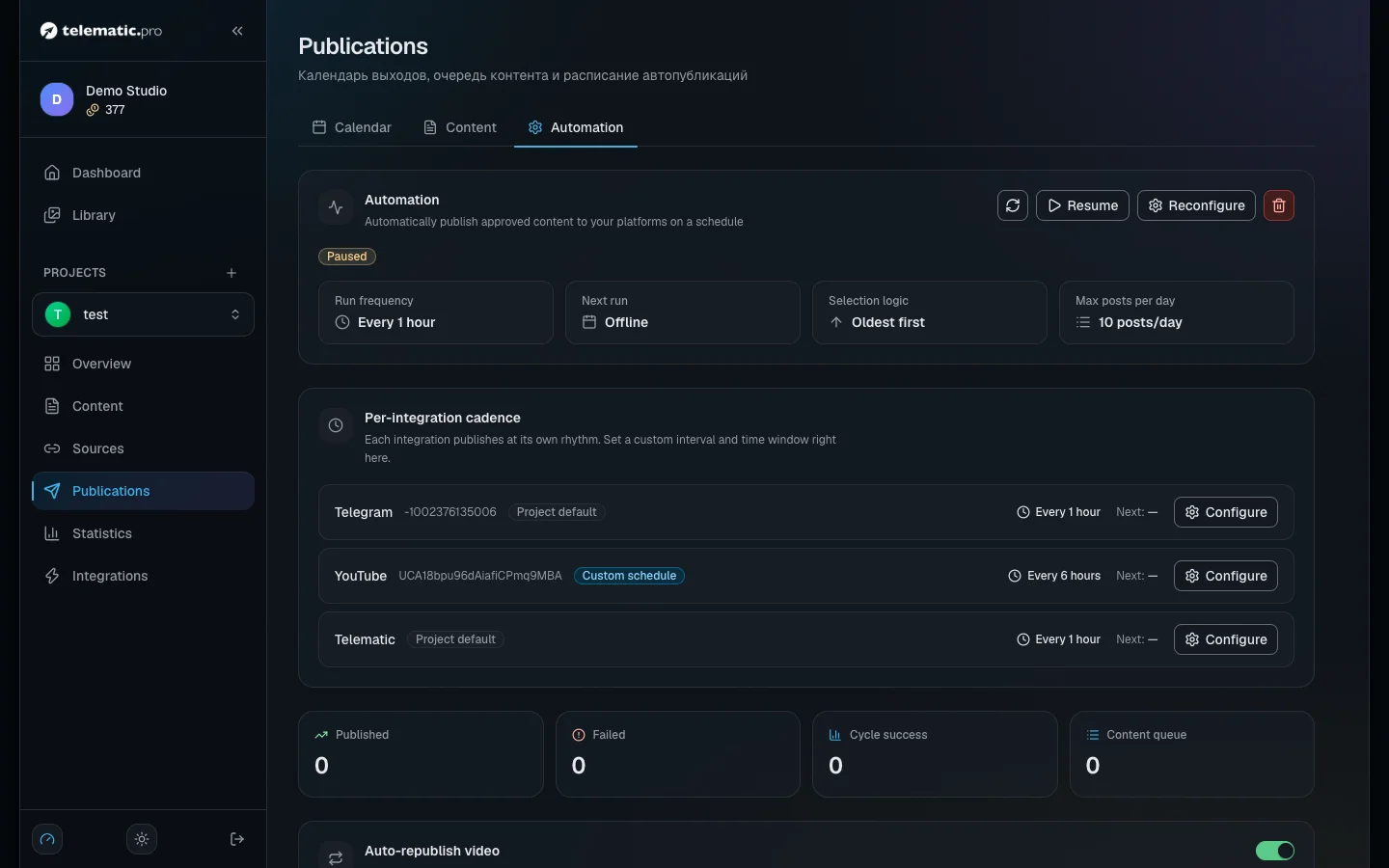
By default every platform publishes at the project's pace. If you want Telegram every hour but YouTube once a day:
- On the "Automation" tab find the "Per-integration cadence" block and click "Configure" next to the platform.
- Choose "Custom rhythm", set "Interval" (from 5 minutes to 30 days) and a time window.
- Click "Save".
The queue stays shared: each platform takes the next item from it that it has not published yet. The same field is in the platform settings on the "Schedule" tab. As long as the project schedule is off, a platform's own pace publishes nothing.
Read the calendar and the queue
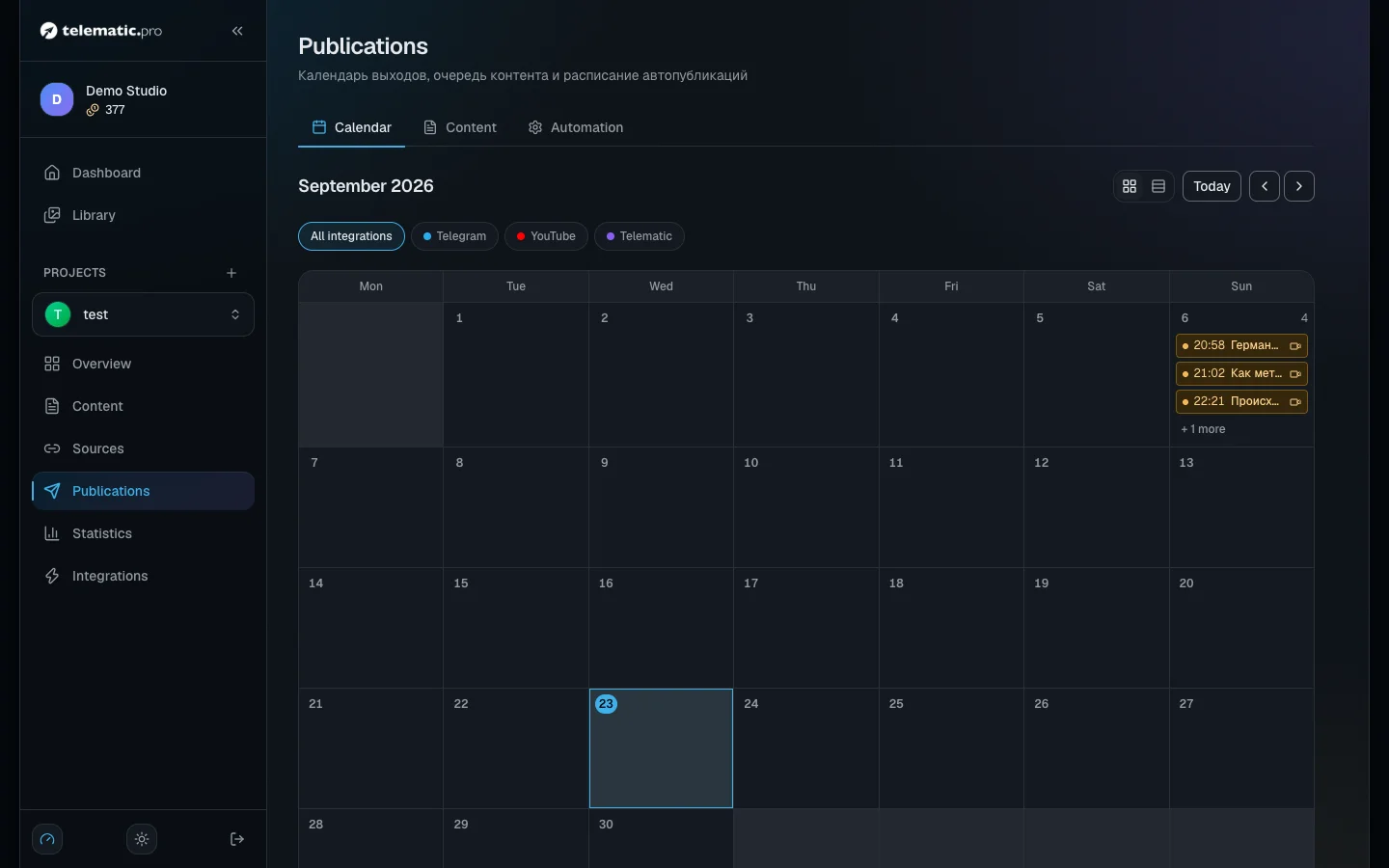
The "Calendar" tab shows a month: what went out over the last 30 days and what is coming. The view switches between "Grid" and "Timeline", and there is a filter by platform.
- "Automated" — the forecast: the service spreads the queue across future runs. This is an estimate, not a promise.
- "Published" — posts sit on the date they actually went out.
- Errors and items waiting for a video are marked in their own colours.
On the "Content" tab the same items are gathered into lists: "Today", "Scheduled", "In queue", "Errors" and "Published". A line takes you to the item's page.
Fill in what did not go out everywhere
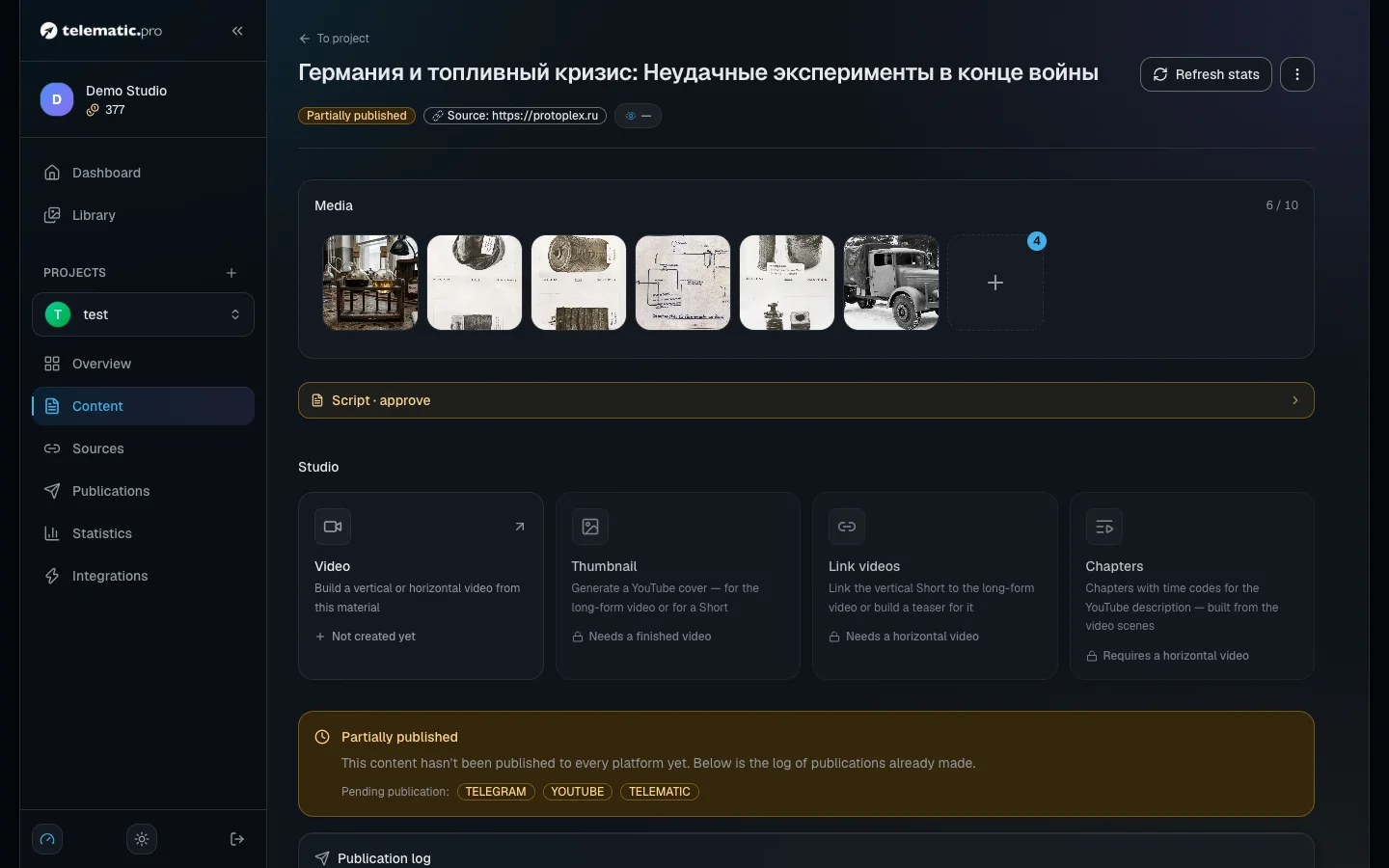
The "Partially published" status means some platforms got the post and some did not. Most often a video platform is waiting for the video: TikTok and Shorts need a vertical one.
- Open the item and find "Publication log": each platform has its own line with the status "Published", "Skipped" or "Failed" and the reason.
- Deal with the reason — collect the video, for instance.
- Click "Publish" at the top or the button in the platform's line. Only what is missing goes out.
For text platforms the schedule fills the gaps by itself on later runs. For video, turn on "Auto-republish video" on the "Automation" tab: a finished video joins the queue for the video platforms that are still missing it. This needs an active schedule.
Important. The "Republish" button in the line of a post that has already gone out publishes it again. An archived item has to be restored and approved first.
Deal with errors
Errors appear in the "Errors" list with a plain description and the attempt number. The service makes up to 3 attempts per platform; the "Restart" button starts one more.
| Reason | What to do |
|---|---|
| The bot is not an administrator of the channel, or was removed from it | Put the bot back among the Telegram channel's administrators, with the right to post |
| Access to the platform has expired or been revoked | Connect the platform again in the "Integrations" section |
| The text is longer than the platform's limit | Shorten the version, or in the platform settings, on the "Content" tab, choose splitting into several posts or shortening by the AI |
| There is no suitable video | Build a video in the right format and publish what is missing |
After the failed attempts the item lands in the "Stuck content" block on the automation tab. Fix the cause and click "Unblock" — the item goes back into the queue. After five failed runs in a row the schedule switches itself off: fix the error and turn it on again.
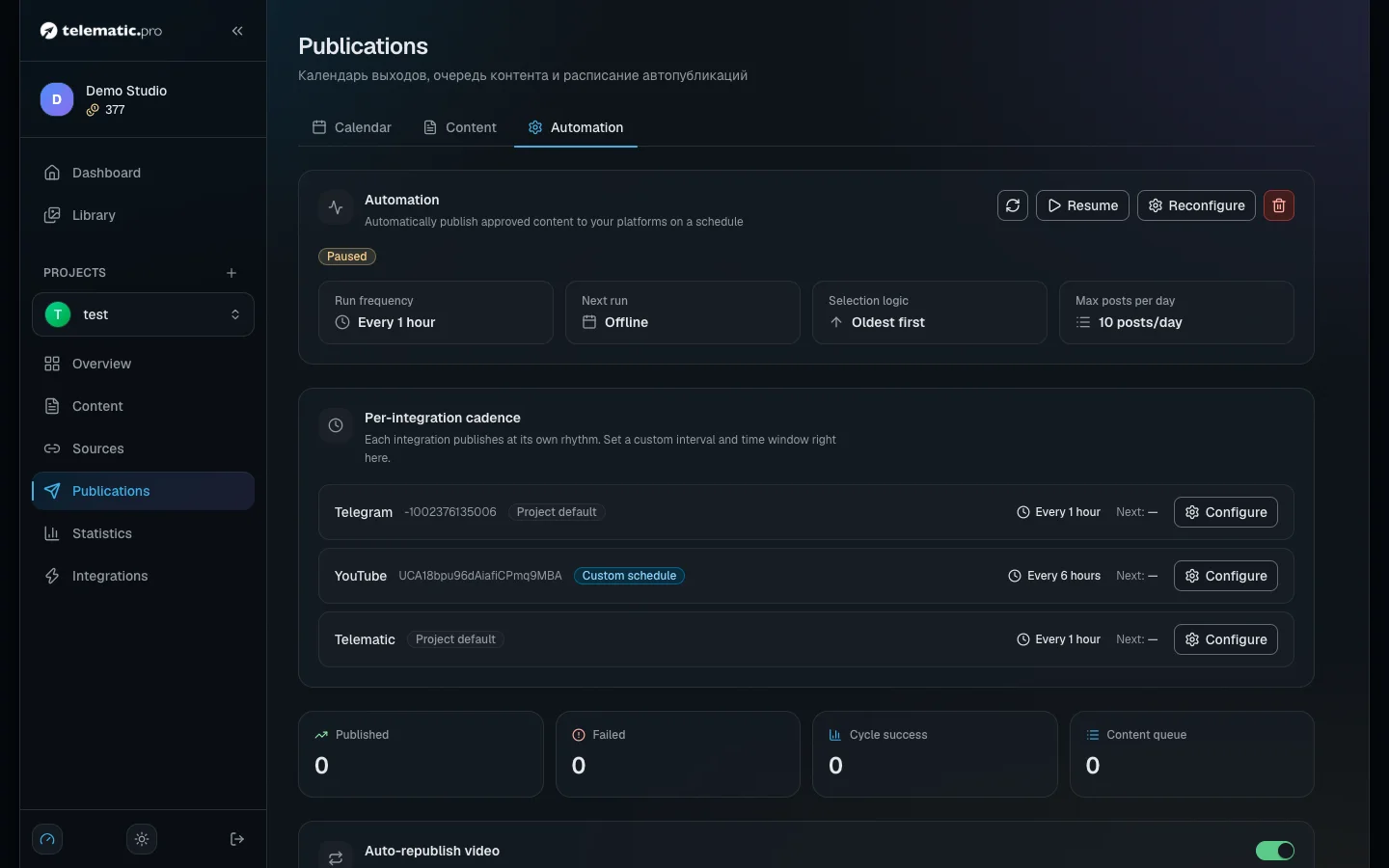
If nothing goes out automatically, check three things: the schedule is active, the item is accepted (not a draft), and the platform has a version of the text.
If you run out of tokens
Before every run the service checks whether there are enough tokens for all of the item's platforms. If there are not, the whole run is skipped: nothing is published and the item stays in the queue. You get a notification by e-mail and in Telegram. Once you top up, the next run goes ahead as usual. Publishing by hand stays free.
What next
- Autopilot — an item goes all the way from text to video and publication by itself.
- Tokens and payment — how to top up your balance.
- Statistics and the Advisor — how to see the views of posts that went out.
- Solving common problems — if the post still has not gone out.