

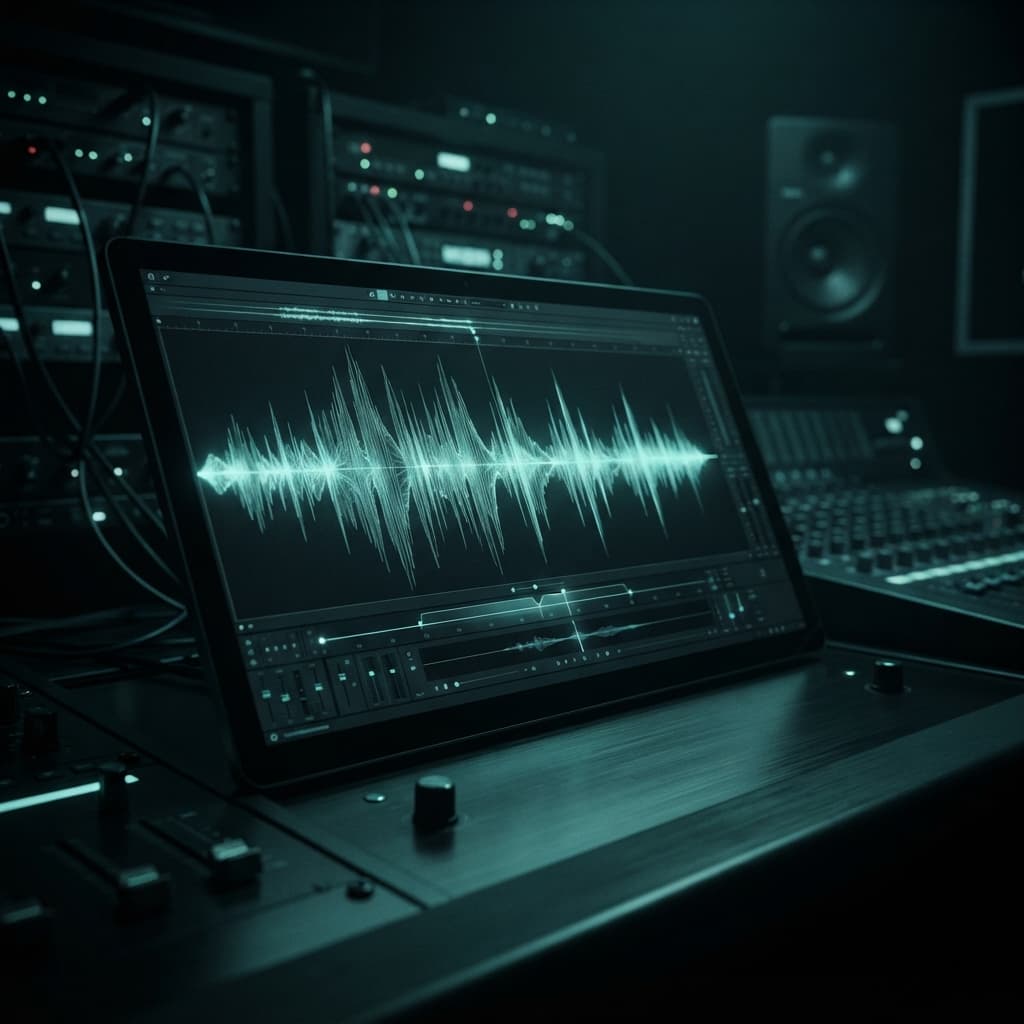
For many years, we have observed the same picture in our clients' projects: the script is well thought out, the editing is precise, but there is always something wrong with the sound of their own recording — a click at the beginning of a phrase, background hum from the air conditioner, or a voice that is either too quiet or, conversely, "overloaded," noticeably differing in volume from the synthesized voiceover in other scenes of the same video. Professional studio sound processing for most video creators means either hiring an expensive specialist or spending hours figuring out unfamiliar software. We decided that this gap should not exist, and we built a waveform audio editor into Telematic right where you are already recording your voice for the scene.
The idea is simple: you see your recording not as a faceless file icon but as a visual wave — a graph of sound amplitude over time — and you can work with it directly: highlight segments, cut out the excess, apply processing, and undo actions if something goes wrong. None of this requires downloading the recording separately, using an external editor, or re-uploading the finished file. In this article, we will explore what exactly can be done with a recording in this editor, why the waveform is needed as a visual representation, and how to achieve clean sound even if you did not record in a professional studio.
Why the Waveform is Not Just a Pretty Picture
The waveform is a graph where time is plotted horizontally and sound volume is plotted vertically at each moment. At first glance, it looks like decorative visualization, but in practice, it is the fastest way to find a problematic spot in the recording without listening to it in its entirety.
A click or extraneous sound is visible on the wave as a sharp short spike against the backdrop of smooth speech. A prolonged pause appears as a flat, almost zero section between two voice spikes. A moment where you accidentally started the phrase over again looks like two nearly identical waves in succession. An experienced sound editor relies on such visual patterns rather than listening to the entire recording in search of defects — and the ordinary Telematic user has access to the same working principle, just without the need to figure out professional sound editing software.
What You Can Do with the Recording Directly in the Editor
The audio editor is built on sound processing directly in the browser — this means that edits are applied instantly, without waiting for the file to upload to the server and back. The basic set of features covers most typical situations when recording voiceovers independently:
- Trimming and cutting segments — remove the introductory "ahem," an accidental pause in the middle of a phrase, or a failed take without touching the rest of the recording.
- Re-recording from the microphone directly over the existing recording — if a specific part did not turn out well, there is no need to re-record the entire scene.
- Undo actions — you can freely experiment with edits without fear of irreversibly ruining the original recording: any action can be undone just like in a text editor.
- Sound cleaning — smoothing out background noise and leveling recording characteristics so that the voice sounds smoother and closer to a studio feel.
An important detail that many stumble upon when recording independently: if the voice sounds too "muffled" or unnaturally "flat" after basic processing, it is almost always not the microphone's fault but rather due to overly aggressive noise reduction processing. Therefore, in Telematic, sound cleaning is not one-dimensional but customizable.
Three Levels of Cleaning and When to Choose Each
Voice processing before the final assembly of the scene is available in three modes, and the difference between them is not a technical nuance but a decision that should be made consciously depending on the recording conditions.
Soft processing — the default mode suitable for most home recordings: slight volume leveling and light noise cleaning without the risk of "squashing" the naturalness of the voice. We use this mode for our own recordings in most cases precisely because it rarely spoils the voice's timbre and does not turn speech into the characteristic "robotic" sound that sometimes arises after excessive noise reduction.
Full processing is suitable for recordings with noticeable background noise — the hum of ventilation, distant street sounds, or the buzzing of equipment in the room. Here, the system works more aggressively, and this is a justified price to pay for eliminating extraneous sound, even if the voice's timbre loses some naturalness.
No processing makes sense to choose if the recording was initially made with good equipment in a quiet room — in this case, additional processing does not eliminate a problem but creates one where there wasn't any, slightly "blurring" an already clean voice.
Practical Scenario: Bringing the Recording to the Desired Quality
Let’s imagine a typical situation: you recorded a voiceover for a scene with an ordinary condenser microphone at home, without acoustic treatment of the room. The waveform immediately shows two spikes-clicks at the beginning — these can be cut out with just a couple of clicks by highlighting a short segment and deleting it. Next, a slight hum is noticeable in the background — here, it’s worth trying soft processing first and listening to the result: if the hum is gone and the voice has not lost its naturalness, that’s sufficient.
If the hum is still audible after soft processing, it makes sense to switch to full processing — yes, the sound will become slightly less "alive," but background noise in the frame reveals an unprofessional recording much more than a slight loss of naturalness in timbre. And only after this, if a specific fragment of the phrase sounded unconvincing, it can be re-recorded precisely from the microphone without touching the rest of the track — this is the case where you don’t have to re-record the entire scene due to one unsuccessful phrase.
Conclusion
The waveform audio editor is the answer to a very practical question: what to do with your own live recording in a system where the rest of the voiceover is synthesized automatically and sounds even by default. Instead of forcing the user to either accept imperfect sound or turn to an external professional editor, Telematic provides enough tools right at the recording site: see the problem on the wave, cut it out, re-record precisely, and choose the necessary level of cleaning based on specific recording conditions. The final voice in the video sounds as clean as is realistically needed for the specific scene — without unnecessary work and without the obligatory visit to a separate sound specialist.